How to Reduce Image File Size Without Losing Quality: Complete Guide
On this page
- What Does Image Compression Do?
- Lossless Compression
- Lossy Compression
- How to Reduce Image File Size Without Losing Quality
- 1. Choose the Right Image Dimensions
- 2. Use an Image Compressor
- 3. Choose the Right File Format
- JPG
- PNG
- WEBP
- 4. Compress JPG Images Carefully
- 5. Compress PNG Images When Appropriate
- 6. Avoid Unnecessary Resolution
- 7. Remove Unnecessary Metadata
- Image Compression vs. Image Resizing
- How to Make an Image Smaller for a Website
- How to Reduce Image Size for Email
- Common Image Compression Mistakes
- Compressing Too Aggressively
- Resizing Without Checking the Final Use
- Using PNG for Every Image
- Converting Every Image to JPG
- Repeatedly Compressing the Same Image
- What Is the Best Way to Reduce Image File Size?
- How Do You Know If Image Quality Is Still Good?
Large image files can quickly become a problem when you need to upload photos, send them by email, add images to a website, or store them on your device. The challenge is reducing the file size without making the image look blurry, pixelated, or noticeably worse.
Fortunately, you can reduce image file size without losing quality by using the right combination of compression, resizing, and file format selection.
The goal is not always to make an image as small as possible. Instead, you want to remove unnecessary data while keeping enough detail for the image's intended use.
What Does Image Compression Do?
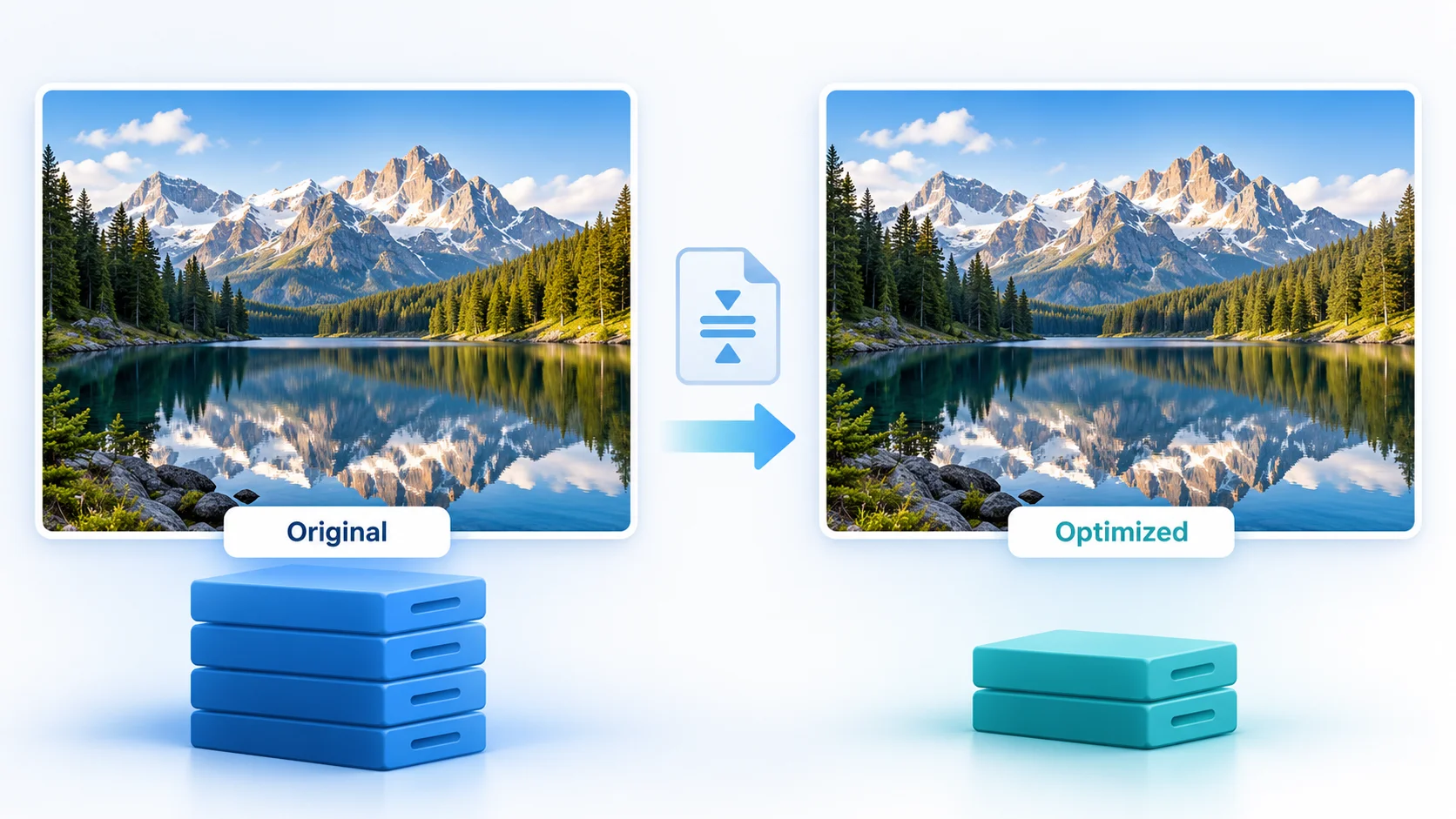
Image compression reduces the amount of data required to store an image.
Depending on the method used, compression can remove unnecessary information, optimize how image data is stored, or reduce image dimensions.
There are two common types of compression:
Lossless Compression
Lossless compression reduces file size without permanently removing image information.
The original image data can be preserved, although the reduction in file size may be more limited.
This approach can be useful when preserving exact image information is important.
Lossy Compression
Lossy compression removes some image data to achieve a greater reduction in file size.
When used carefully, the visual difference may be difficult to notice. However, excessive compression can cause visible artifacts, blurred details, or blocky areas.
For everyday web images and photos, a carefully chosen level of lossy compression can often provide a useful balance between file size and image quality.
How to Reduce Image File Size Without Losing Quality
There are several ways to make an image file smaller while keeping it looking good.
1. Choose the Right Image Dimensions
One of the easiest ways to reduce image size is to resize the image.
A photo that is 5000 pixels wide may be much larger than necessary if it will only appear at 1200 pixels wide on a website.
Before compressing an image, consider where it will be used.
For example:
Website banner: use dimensions appropriate for the page layout
Social media image: follow the platform's recommended dimensions
Email attachment: reduce unnecessary resolution
Thumbnail: use much smaller dimensions than the original
Print image: preserve dimensions required for printing
Reducing unnecessary dimensions can significantly lower the file size without changing the image's basic appearance.
2. Use an Image Compressor
An image compressor can simplify the process by optimizing the file automatically.
A typical workflow is:
Select the image.
Upload it to the image compressor.
Choose a suitable compression level if available.
Process the image.
Download the compressed version.
Compare it with the original.
Always keep the original image until you have confirmed that the compressed version meets your needs.
3. Choose the Right File Format
The format you use can have a major effect on file size.
JPG
JPG is commonly used for photographs and other images containing many colors and smooth transitions.
It can produce relatively small files, especially when compression is applied.
PNG
PNG is useful when transparency, sharp graphics, or certain types of detailed artwork are important.
However, PNG files can become large when used for photographs.
WEBP
WEBP is a modern image format designed to provide efficient image storage for web use. It can support both lossy and lossless compression.
Whether WEBP is appropriate depends on where the image will be used and whether the platform or application supports it.
4. Compress JPG Images Carefully
If you have a JPG photo that is too large, compression can reduce its file size.
The important part is choosing a sensible compression level.
Very aggressive JPG compression can create visible artifacts around text, edges, and detailed areas.
For example, a photograph may still look good after moderate compression, while a screenshot containing small text may show quality loss more quickly.
Always inspect the result at the size at which people will actually view it.
5. Compress PNG Images When Appropriate
PNG files can be useful for graphics, logos, screenshots, and images that require transparency.
If a PNG is unnecessarily large, optimization may reduce its file size.
However, converting every PNG to JPG is not always a good idea. If the image needs transparency, JPG is not an appropriate replacement because JPG does not support transparent backgrounds.
Choose the format based on the image rather than using one format for everything.
6. Avoid Unnecessary Resolution
Image resolution describes the amount of detail contained in an image.
Higher resolution can be useful for printing or detailed viewing, but it is not always necessary for digital use.
If an image will only appear as a small element on a webpage, keeping an extremely high-resolution original may add file size without providing a visible benefit.
Resize the image according to its actual display requirements.
7. Remove Unnecessary Metadata
Some image files contain metadata such as camera information, location information, timestamps, or editing details.
Depending on the image and compression tool, removing unnecessary metadata can reduce file size slightly.
It can also be useful from a privacy perspective when metadata contains information you do not want to share.
However, metadata removal should be considered separately from visual compression because it does not replace proper image optimization.
Image Compression vs. Image Resizing
These two techniques are related but different.
Resizing changes the dimensions of an image.
Compression changes how the image data is stored to reduce its file size.
You can use either method independently, but combining them can often be more effective.
For example, if a website displays an image at 1200 pixels wide, there may be little reason to upload a 5000-pixel version and rely only on compression.
A better approach may be to resize it closer to the required dimensions and then compress it appropriately.
How to Make an Image Smaller for a Website
Website images should be prepared according to where and how they will be displayed.
Before uploading an image, consider:
Display dimensions
Image format
Compression level
Transparency requirements
Mobile display
Visual detail
Intended page placement
Avoid uploading a huge original photograph when a much smaller version would look identical at the displayed size.
This is especially important for pages containing many images because unnecessarily large files can increase the amount of data visitors need to load.
How to Reduce Image Size for Email
Large images can also be inconvenient as email attachments.
If the recipient does not need the original full-resolution image, create a smaller copy before attaching it.
For example, a high-resolution camera photo may contain far more pixels than necessary for someone simply viewing it on a phone or computer.
Resize the image first, then compress it if necessary.
Keep the original separately if you may need the full-resolution version later.
Common Image Compression Mistakes
Compressing Too Aggressively
The smallest possible file is not always the best result.
Excessive compression can make photographs look muddy and can damage fine details.
Resizing Without Checking the Final Use
Making an image extremely small can permanently remove detail that you may later need.
Always consider the intended display size before resizing.
Using PNG for Every Image
PNG is useful for certain graphics, but it may not be the most efficient choice for photographs.
Choose the format based on the content and requirements of the image.
Converting Every Image to JPG
JPG is not suitable for every situation. Images that require transparency or certain types of sharp graphics may work better in PNG or another appropriate format.
Repeatedly Compressing the Same Image
Repeated lossy compression can gradually degrade image quality.
Keep the original file and create compressed copies from it rather than repeatedly processing the already compressed version.
What Is the Best Way to Reduce Image File Size?
The best method depends on the image and its purpose.
Image Type
Practical Approach
Photograph
Resize if necessary and compress JPG or WEBP
Website photo
Use suitable dimensions and efficient compression
Logo with transparency
Consider PNG or another format that supports transparency
Screenshot
Preserve readable text and fine details
Social media image
Resize to the required dimensions before compression
Email photo
Create a smaller copy for the attachment
Print image
Preserve the resolution required for the intended output
There is no single compression setting that works perfectly for every image.
The right result is the smallest practical file that still looks good for its intended use.
How Do You Know If Image Quality Is Still Good?
After compression, compare the new image with the original.
Look closely at:
Fine details
Text
Faces
Edges
Shadows
Gradients
Small objects
Transparent areas
Also check the image at its normal display size.
A compressed image may look different when heavily zoomed in but appear perfectly acceptable at its intended size. What matters is whether the quality is appropriate for the actual use.
Choose the Right Balance Between Size and Quality
Reducing an image file should not mean sacrificing the visual quality that matters.
Start by considering how the image will be used. Resize unnecessary dimensions, select an appropriate format, apply reasonable compression, and check the final result before replacing the original.
For everyday photos, website images, screenshots, and digital documents, a reliable image compressor can make optimization much easier. The goal is simple: make the image file smaller while keeping enough quality for the people who will actually view it.
Frequently asked questions
How can I reduce image file size without losing quality?
Resize the image to an appropriate dimension, choose a suitable file format, and apply moderate compression. Then compare the result with the original before using it.
Does compressing an image reduce quality?
It can. Lossless compression preserves image information, while lossy compression removes some data to achieve a smaller file. Careful lossy compression can reduce file size while keeping the visual difference small.
Is JPG or PNG better for smaller file sizes?
Neither is always better. JPG is often practical for photographs, while PNG is useful for graphics and images requiring transparency. The best format depends on the image.
Is WEBP better for website images?
WEBP can provide efficient image compression for web use, but compatibility and the requirements of the website or platform should be considered before changing formats.
How do I compress an image without making it blurry?
Avoid excessive compression and choose dimensions appropriate for the intended display size. After compression, inspect important details such as text, edges, and faces.
Can I reduce image size without changing dimensions?
Yes. Compression can reduce file size without changing the image's pixel dimensions. However, the amount of reduction depends on the image format and its existing compression.
Should I keep the original image after compression?
Yes. Keep the original whenever possible. It allows you to create another optimized version later without repeatedly compressing an already processed image.
Free tools mentioned in this article
Comments
No comments yet. Be the first to comment.