How to Merge Multiple PDF Files Into One Document: Easy Online Guide
On this page
- What Does It Mean to Merge PDF Files?
- Why Combine Multiple PDFs Into One File?
- Easier Document Sharing
- Better Organization
- Simpler Uploads
- Easier Printing
- How to Merge Multiple PDF Files Online
- Step 1: Gather Your PDF Files
- Step 2: Open a PDF Merge Tool
- Step 3: Upload Your PDF Documents
- Step 4: Arrange the PDF Files in the Correct Order
- Step 5: Merge the PDFs
- Step 6: Download and Check the Final PDF
- Can You Merge PDFs Without Losing Quality?
- How Should You Organize PDFs Before Merging?
- What If the PDF Pages Are in the Wrong Order?
- Common Mistakes When Combining PDF Files
- Uploading Files in the Wrong Order
- Using Duplicate Documents
- Forgetting to Check the Final Document
- Merging Unnecessary Files
- Ignoring File Size
- What Is the Difference Between Merging and Combining PDFs?
- When Should You Merge PDF Files?
- How to Create a Better Merged PDF
- Give the File a Clear Name
- Check the Page Sequence
- Remove Unnecessary Pages
- Review Sensitive Information
- Check the Final File
Having several PDF files for the same project can quickly become difficult to manage. You may have separate pages, reports, forms, receipts, or scanned documents that need to be sent together. Instead of sharing multiple files, you can merge multiple PDF files into one organized document.
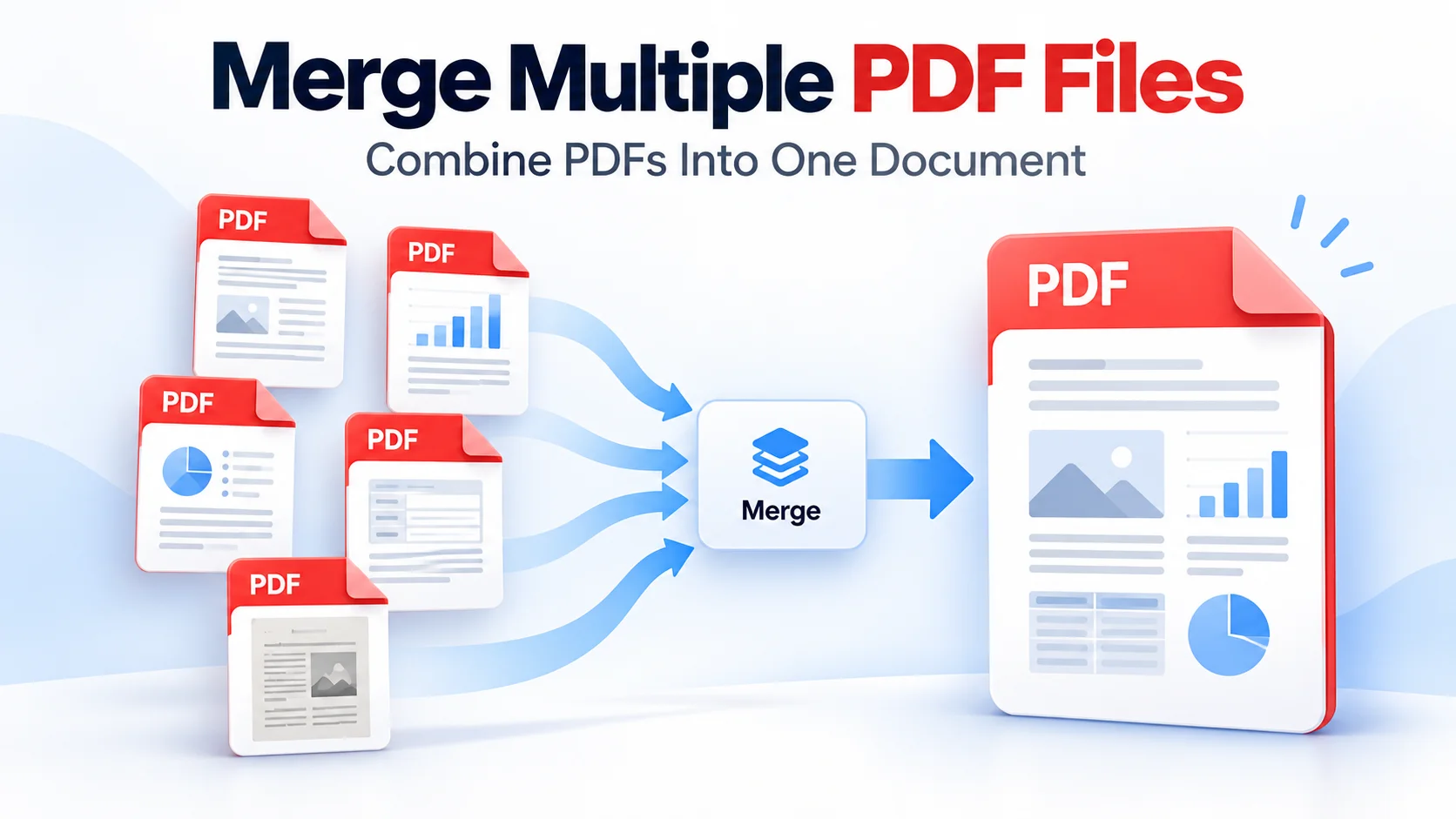
Merging PDFs combines separate files into a single PDF while keeping the pages in one continuous document. It can make document sharing, uploading, printing, and organization much easier.
What Does It Mean to Merge PDF Files?
Merging PDF files means combining two or more PDF documents into a single PDF.
For example, imagine you have:
A 5-page report
A 2-page appendix
A 3-page reference document
Instead of sending three separate files, you can combine them into one 10-page PDF.
The original files are used as the source documents, while the merged file becomes a new single document.
Why Combine Multiple PDFs Into One File?
There are several practical reasons to join PDF files.
Easier Document Sharing
Sending one PDF is often simpler than attaching several separate documents to an email or message.
Better Organization
Related documents can be kept together in one place. This can be especially useful for reports, applications, project records, and business paperwork.
Simpler Uploads
Some websites allow only one document to be uploaded. Combining the required PDFs beforehand can make the upload process easier.
Easier Printing
A single PDF can be opened and printed as one document instead of managing multiple files individually.
How to Merge Multiple PDF Files Online
Using an online PDF tool is one of the simplest ways to combine PDF files.
Step 1: Gather Your PDF Files
First, identify all the PDF documents you want to combine.
Before uploading them, check that you have the correct versions. If you have similarly named files, rename them so you can easily identify the correct order.
For example:
Cover Page
Main Report
Appendix
References
This can help prevent pages from appearing in the wrong sequence.
Step 2: Open a PDF Merge Tool
Open an online PDF merging tool that supports combining multiple documents.
Look for a tool that allows you to upload several PDFs and arrange their order before creating the final file.
Step 3: Upload Your PDF Documents
Select the PDF files from your computer or device.
Depending on the tool, you may be able to upload several files at once or add them individually.
Check the selected files before continuing.
Step 4: Arrange the PDF Files in the Correct Order
The order matters because the pages will usually appear in the merged PDF according to the order of the uploaded documents.
For example:
Cover → Report → Supporting Documents → Appendix
is very different from:
Appendix → Cover → Report → Supporting Documents
If the tool allows you to drag and rearrange files, use that option to create the correct sequence.
Step 5: Merge the PDFs
Once the files are in the correct order, select the merge or combine option.
The tool will process the individual PDF documents and create one file containing their pages.
Step 6: Download and Check the Final PDF
After the PDF merge is complete, open the new file and review it.
Check:
Page order
Missing pages
Text readability
Images
Tables
Page orientation
Formatting
Number of pages
Do not assume the file is correct simply because the merging process finished successfully.
Can You Merge PDFs Without Losing Quality?
Yes. Simply combining PDF files does not normally require reducing the quality of their pages.
Merging and compression are separate processes. Merging combines documents, while compression reduces the amount of data stored in a file.
However, the exact behavior depends on the tool being used. If you are combining PDFs that contain high-resolution images or scanned pages, check the final document afterward to make sure the visual quality is still acceptable.
How Should You Organize PDFs Before Merging?
Good organization before merging can save time and prevent mistakes.
Start by deciding what the final document should look like.
For a business report, you might use:
Cover page
Introduction
Main report
Supporting information
Appendix
References
For an application package, the order could be:
Application form
Identification document
Supporting records
Additional documents
The right order depends on the purpose of the final PDF.
What If the PDF Pages Are in the Wrong Order?
If the pages appear incorrectly, return to the original files and check their order before merging again.
Some tools allow individual PDF files to be rearranged before merging. Others may also allow individual pages to be moved after the files are uploaded.
If you need precise page-level control, make sure the tool supports page organization rather than only file-level ordering.
Common Mistakes When Combining PDF Files
Uploading Files in the Wrong Order
The most common mistake is forgetting to arrange the documents before merging.
Always check the sequence before creating the final file.
Using Duplicate Documents
It is easy to accidentally upload the same PDF twice, especially when working with similarly named files.
Review the file list before merging.
Forgetting to Check the Final Document
Always open the completed PDF. Check several pages and make sure all required documents are present.
Merging Unnecessary Files
Do not combine unrelated documents just because they are PDFs.
A useful merged document should have a clear purpose and logical structure.
Ignoring File Size
Combining several large PDFs can create a very large final document. If the resulting file is difficult to email or upload, PDF compression may be useful after merging.
What Is the Difference Between Merging and Combining PDFs?
The terms merge PDF, combine PDF files, and join PDF files generally describe the same basic task: creating one PDF from multiple PDF documents.
The exact terminology varies between tools, but the purpose is usually the same.
For example:
PDF A + PDF B + PDF C → One PDF
The resulting file contains the pages from the source documents in the selected order.
When Should You Merge PDF Files?
PDF merging is useful whenever multiple documents belong together but currently exist as separate files.
Common examples include:
Business reports
School assignments
Project documentation
Invoices and supporting records
Application documents
Contracts and attachments
Scanned paperwork
Presentation materials
Research documents
Reference materials
The main benefit is simpler document management. Instead of handling several related files separately, you have one organized PDF.
How to Create a Better Merged PDF
Before sharing your final document, take a few moments to review it.
Give the File a Clear Name
Instead of names such as merged.pdf or document1.pdf, use something descriptive.
For example:
Project-Report-October-2026.pdf
Check the Page Sequence
Make sure the reader will encounter the information in the intended order.
Remove Unnecessary Pages
If a source document contains pages that are not needed, remove them before creating the final document when your PDF tool supports page-level editing.
Review Sensitive Information
Before sharing a merged PDF, check that it does not contain documents or information that were not intended for the recipient.
Check the Final File
Open the finished PDF on your device before sending it. This simple check can catch missing pages, incorrect ordering, or formatting problems.
Keep Related PDF Documents Together
When several PDF files belong to the same project or submission, combining them into a single document can make the whole process easier to manage. The key is to organize the files first, place them in the correct order, merge them, and then check the final PDF before sharing it.
For routine document management, an online PDF merging tool can turn several separate files into one organized document in just a few steps.
Frequently asked questions
How do I merge multiple PDF files into one?
Upload the PDF files to a PDF merging tool, arrange them in the desired order, select the merge option, and download the resulting single PDF. Always review the final document before sharing it.
Can I merge PDFs online?
Yes. Online PDF tools can combine multiple PDF documents into one file without requiring desktop PDF software.
Will merging PDFs reduce their quality?
Merging itself does not necessarily reduce quality. However, different tools may process files differently, so it is a good idea to inspect the completed PDF, especially when it contains images or scanned pages.
Can I change the order of PDF pages?
Many PDF tools allow you to rearrange files or pages before creating the final document. If page-level ordering is important, choose a tool that provides this functionality.
Can I combine more than two PDF files?
Yes. PDF merging tools can generally combine multiple documents into one file. The number of files supported may vary depending on the tool.
What should I do if the merged PDF is too large?
If combining the files creates a large document, you can compress the resulting PDF to reduce its file size. Review the compressed version afterward to make sure readability and image quality remain acceptable.
Is it better to keep PDFs separate or combine them?
It depends on how the documents will be used. If several files belong to the same submission, report, or project, combining them can make sharing and organization easier. If the documents have different purposes or recipients, keeping them separate may be more practical.
Free tools mentioned in this article
Comments
No comments yet. Be the first to comment.