Compress PDF Online: 7 Ways to Reduce File Size Fast
On this page
- What Does PDF Compression Do?
- How to Compress a PDF Quickly
- 7 Ways to Reduce PDF File Size
- 1. Compress the PDF Online
- 2. Reduce Image Resolution
- 3. Convert Large Images Before Creating the PDF
- 4. Remove Unnecessary Pages
- 5. Avoid Scanning Documents at Excessive Quality
- 6. Remove Unnecessary Embedded Data
- 7. Recreate the PDF Using Optimized Settings
- What Is the Best Way to Make a PDF Smaller?
- Does Compressing a PDF Reduce Quality?
- How Much Can You Reduce a PDF?
- Compressed PDF vs. Original PDF
- Common PDF Compression Mistakes
- Compressing the only copy
- Choosing maximum compression automatically
- Compressing sensitive documents without checking the service
- Ignoring the original images
- Forgetting to check the final document
- When Should You Compress a PDF?
- Need to Reduce a PDF Before Sharing?
A PDF can become surprisingly large after adding images, scans, screenshots, or multiple pages. A file that looks perfectly normal can still be too large to upload to a website, attach to an email, or send through a messaging app. If you need to compress PDF files quickly, there are several ways to reduce their size without unnecessarily damaging the document.
The right method depends on what is making the PDF large. Image-heavy documents usually need different treatment from text-based PDFs.
What Does PDF Compression Do?
PDF compression reduces the amount of data stored inside a PDF so the file takes up less space.
A PDF can contain much more than visible text. It may include:
High-resolution images
Scanned pages
Embedded fonts
Screenshots
Metadata
Duplicate or unnecessary objects
Large graphics
Compression can remove unnecessary data or reduce the amount of information stored in certain elements.
The goal is simple: make the PDF smaller while keeping it usable and readable.
How to Compress a PDF Quickly
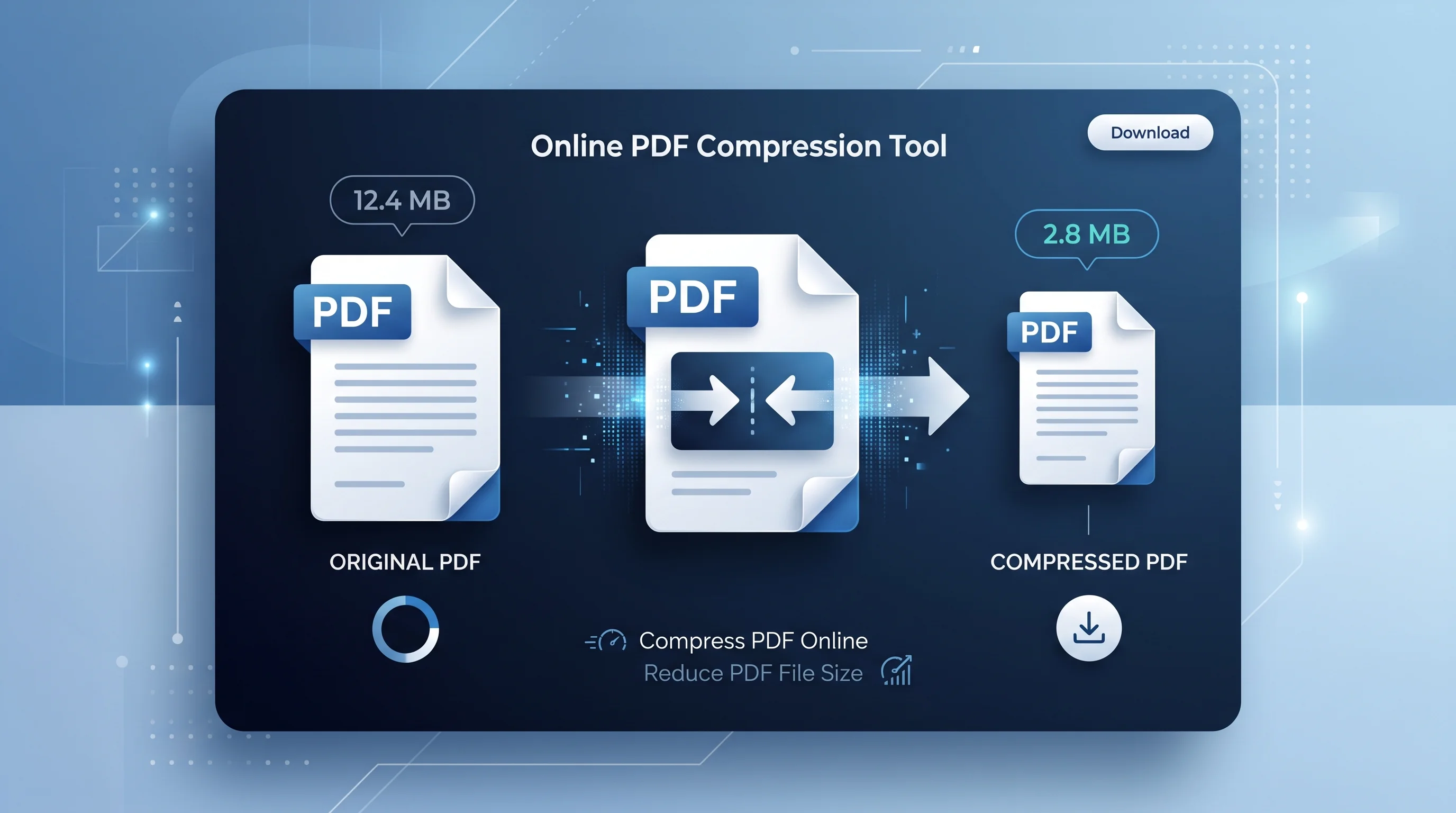
The easiest option for most people is to use an online PDF compressor.
With an online tool, you generally upload the document, allow the tool to process it, and download the smaller version. This can be useful when you need to reduce a PDF file size without installing desktop software.
For sensitive documents, however, check how the service handles uploaded files before using it. Documents containing private, financial, legal, or confidential information deserve extra care.
7 Ways to Reduce PDF File Size
1. Compress the PDF Online
An online PDF compressor is usually the fastest option when you simply need a smaller file.
This approach is particularly useful when:
You need to send the PDF by email
A website has an upload-size limit
You want to share the document quickly
You don't want to install additional software
The amount of compression depends on what is inside the PDF. A document containing several large images may shrink considerably, while a mostly text-based PDF may see a smaller reduction.
2. Reduce Image Resolution
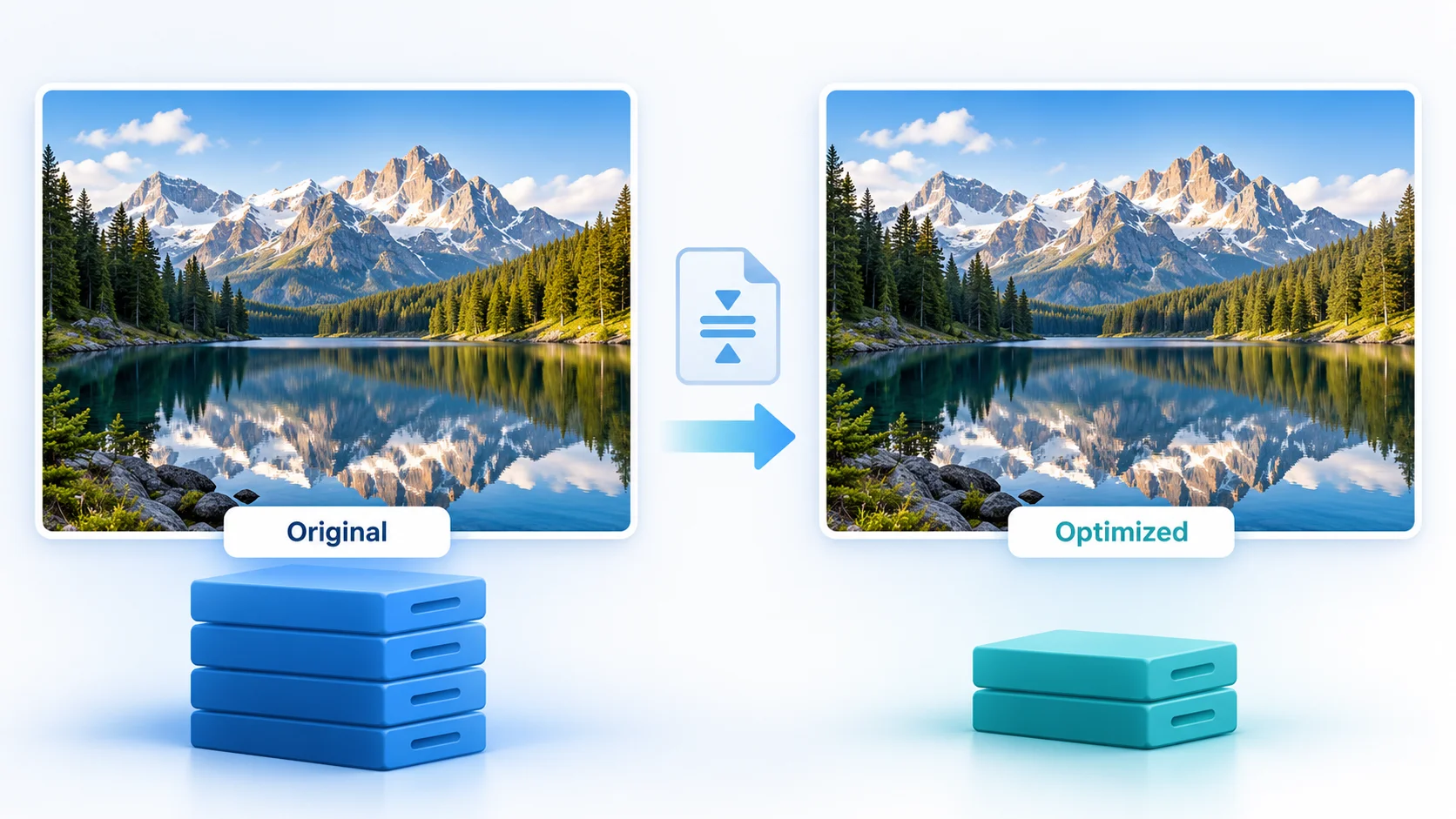
Images are often responsible for a large portion of a PDF's file size.
For example, a document containing photographs saved at a very high resolution may be much larger than necessary for normal screen viewing.
Reducing image resolution can make the PDF smaller.
For documents intended mainly for online viewing, extremely high-resolution images are often unnecessary. The important thing is to find a balance between file size and visual quality.
3. Convert Large Images Before Creating the PDF
If you're creating a PDF from photographs or scanned images, compressing those images before placing them into the document can help.
Consider the image format and dimensions before creating the final PDF.
For example, a huge image inserted into a small page does not necessarily make the document look better. It can simply add unnecessary data.
A practical workflow is:
Resize oversized images.
Remove unnecessary image data.
Use an appropriate image format.
Create the PDF.
Check the final file size and quality.
4. Remove Unnecessary Pages
Sometimes the simplest way to make a PDF smaller is to remove content you don't actually need.
Look through the document for:
Blank pages
Duplicate pages
Unnecessary attachments
Old versions
Large pages added accidentally
If a 40-page document only needs to be shared as a 25-page document, removing the unnecessary pages reduces the amount of data that needs to be stored and transmitted.
This is especially useful when preparing a document for submission or upload.
5. Avoid Scanning Documents at Excessive Quality
Scanned PDFs can become very large because every page may essentially contain a high-resolution image.
If you are scanning a simple text document, extremely high scan settings may create a much larger file without providing a noticeable improvement for the intended use.
For ordinary digital reading, use a scan quality that preserves clear text without creating unnecessarily large images.
For documents where fine details matter, such as technical drawings or archival material, higher quality may be necessary.
6. Remove Unnecessary Embedded Data
Some PDFs contain additional information that isn't important for the person receiving the document.
Depending on how the PDF was created, this can include unnecessary metadata, embedded resources, or other document objects.
Removing unnecessary elements can sometimes reduce file size.
However, don't remove embedded information blindly. Some elements may be required for fonts, accessibility, document functionality, or correct rendering.
7. Recreate the PDF Using Optimized Settings
If the PDF remains too large, consider going back to the original document and exporting it again using settings appropriate for its intended purpose.
For example, a PDF intended for:
Email sharing
Online reading
Website uploads
Printing
Professional publishing
doesn't necessarily need the same output settings.
A print-quality PDF may intentionally be much larger than a document designed only for screen viewing.
Choosing the right output settings at the source can prevent unnecessary file size in the first place.
What Is the Best Way to Make a PDF Smaller?
For a quick reduction, compressing the PDF online is usually the most convenient starting point.
If the result is still too large, identify what's contributing most to the file size. Image-heavy PDFs usually benefit from image optimization, while scanned documents may require lower scanning or image-resolution settings.
Don't automatically choose the strongest possible compression.
A very aggressive compression setting can reduce the file size while also making images blurry or text harder to read.
The better goal is:
Small enough to meet your requirement, but clear enough for the document's purpose.
Does Compressing a PDF Reduce Quality?
It can, but it doesn't always have to be noticeable.
The effect depends on how the PDF is compressed and what the document contains.
A PDF containing mostly text may remain visually similar after compression. A PDF containing photographs or detailed scans may show more noticeable changes.
Before replacing your original file, compare the compressed version with the original.
Check:
Text readability
Image sharpness
Page layout
Graphics
Tables
Important fine details
If quality has dropped too much, try a less aggressive compression method.
How Much Can You Reduce a PDF?
There is no single percentage that applies to every PDF.
A file containing large images may have significant room for reduction. A text-heavy PDF that has already been optimized may not shrink very much.
For example, compressing a document that is already small and efficiently created may produce only a modest reduction. A scanned document containing hundreds of high-resolution images can have much more unnecessary data to remove.
The original PDF structure matters more than a fixed compression percentage.
Compressed PDF vs. Original PDF
FactorOriginal PDFCompressed PDFFile sizeUsually largerUsually smallerSharingMay take longerEasier to upload or sendStorageUses more spaceUses less spaceImage qualityOriginal qualityMay be reducedBest useArchiving or high-quality outputSharing and online use
Keep the original when the document may need to be edited, printed at high quality, or preserved for future use.
Use the compressed copy when the priority is easier sharing, uploading, or storage.
Common PDF Compression Mistakes
Compressing the only copy
Always keep the original when the document matters. Compression can sometimes reduce quality or remove information you later need.
Choosing maximum compression automatically
The smallest possible file isn't always the best file. If the document becomes difficult to read, you've compressed it too far.
Compressing sensitive documents without checking the service
Before uploading confidential material to an online tool, review the provider's privacy and file-handling information.
Ignoring the original images
If images are unnecessarily large, reducing their dimensions before creating the PDF can sometimes be more effective than repeatedly compressing the finished document.
Forgetting to check the final document
Don't judge a compressed PDF only by its file size. Open it and make sure the pages, text, images, and layout still look correct.
When Should You Compress a PDF?
Compressing a PDF makes sense when the file is too large for its intended purpose.
Common situations include:
An email attachment exceeds the allowed size
A website rejects the upload
A document takes too long to upload
You need to save storage space
You want to share a document through messaging apps
Multiple PDFs need to be stored or transferred
If the PDF already meets your size requirements and quality is important, compression may not be necessary.
Need to Reduce a PDF Before Sharing?
If your PDF is too large for an upload, email, or online workflow, start by identifying what's making the file heavy and then use the least aggressive compression that meets your size requirement. For a quick workflow, you can use the PDF-related tools available through BuzzNexters and check the resulting file before sharing it.
Frequently asked questions
How do I compress a PDF online?
Upload the PDF to an online PDF compression tool, choose the appropriate compression level if available, process the document, and download the smaller file. Always review the final PDF to make sure its quality and content remain acceptable.
What is the easiest way to reduce PDF file size?
For most everyday documents, using an online PDF compressor is the simplest option. If the PDF contains very large images or scans, reducing image resolution can also make a significant difference.
Can I compress a PDF without losing quality?
Yes, depending on the document and compression method. Text-heavy PDFs may remain visually similar, while image-heavy documents are more likely to show quality changes.
Why is my PDF so large?
Large PDFs are commonly caused by high-resolution images, scanned pages, embedded resources, or unnecessarily large graphics. The way the PDF was created can also affect its final size.
Does compressing a PDF make it blurry?
It can if image compression is aggressive. Photographs, scans, and detailed graphics are more likely to lose visible quality than ordinary text.
Should I keep the original PDF after compressing it?
Yes. Keeping the original is a good practice when the document is important. You can then use the compressed copy for sharing or uploading while preserving the higher-quality version.
Can I make a scanned PDF smaller?
Yes. Scanned PDFs can often be reduced by optimizing the scanned images or using appropriate scan settings. Be careful with documents where fine details or very small text need to remain clear.
Free tools mentioned in this article
Comments
No comments yet. Be the first to comment.